View and upgrade
Review the version format
Software
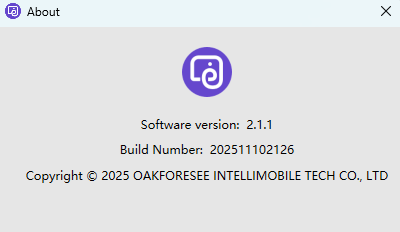
To view the software version, you can access the details screen from the About option under the Help menu. You can see the version and build number, where the build number can be understood as the software release date, through which you can intuitively judge the current software version status.
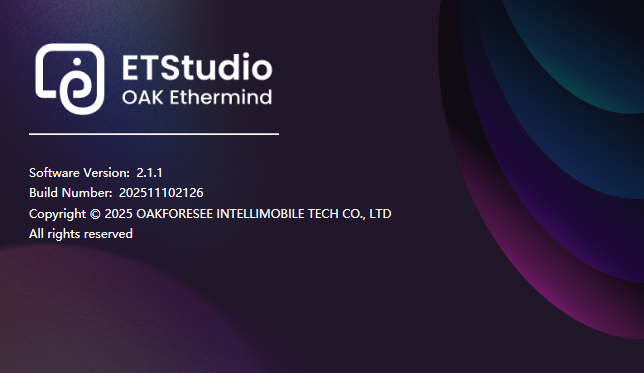
In addition, the same information as above can be seen through the software boot interface and software upgrade interface.
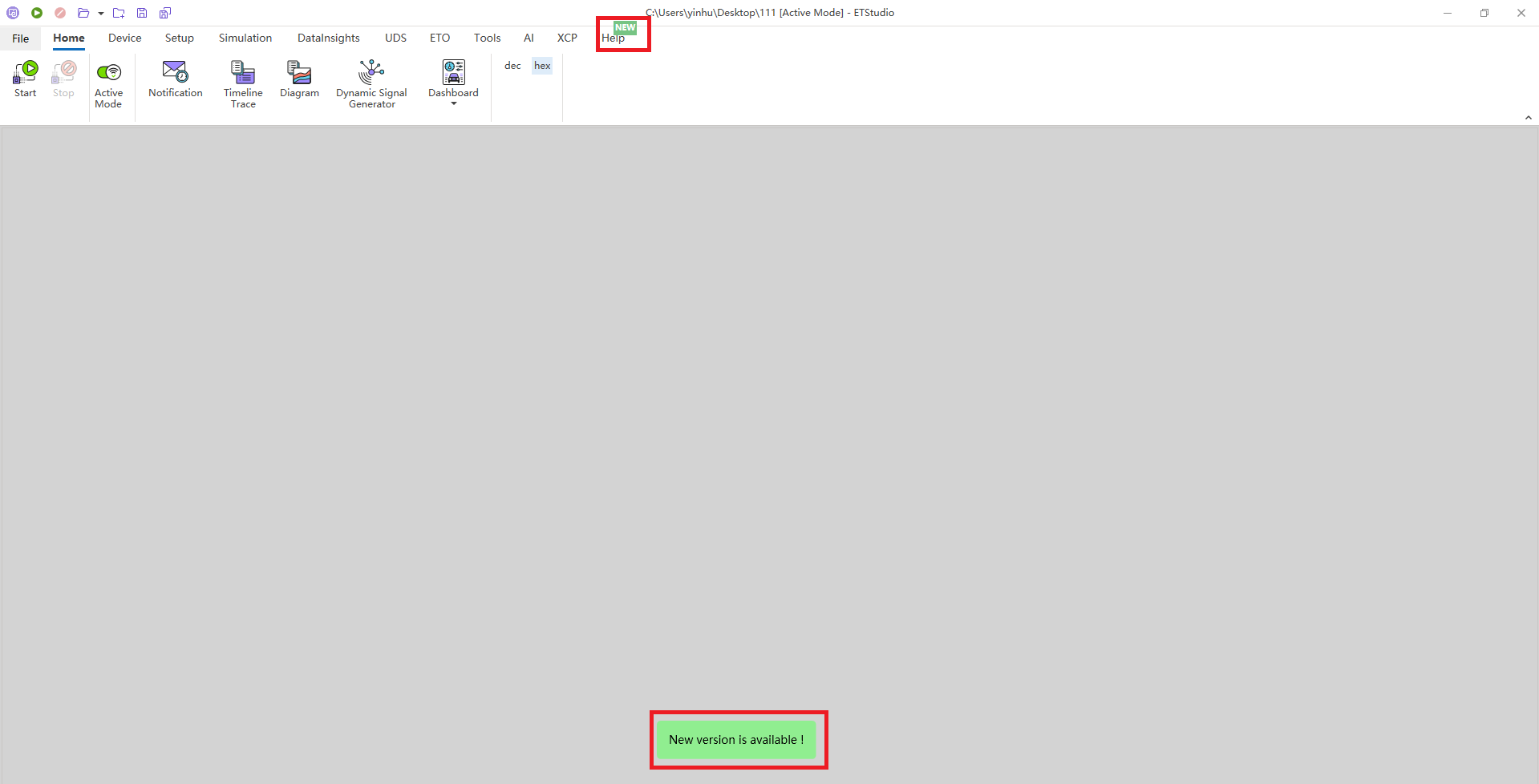
When the user opens the software, if there is a new version available, a prompt will appear along with corresponding indicators in the help and update sections.

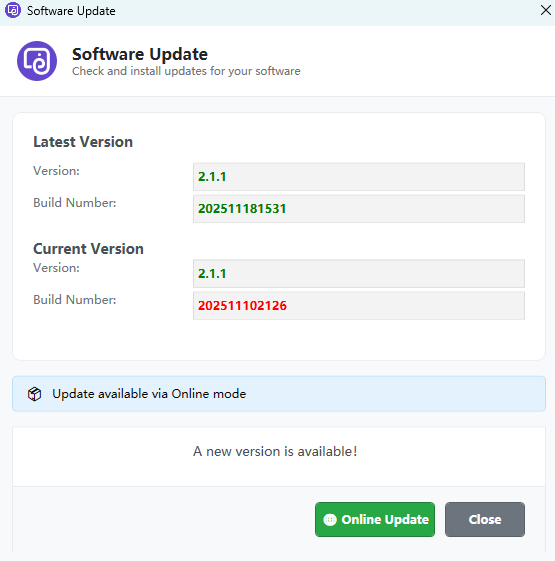
Software versions and upgradess
You can enter the software upgrade interface through the Update option under the Help menu, and if it detects that there is a software version higher than the current version, an Online Update prompt will appear.
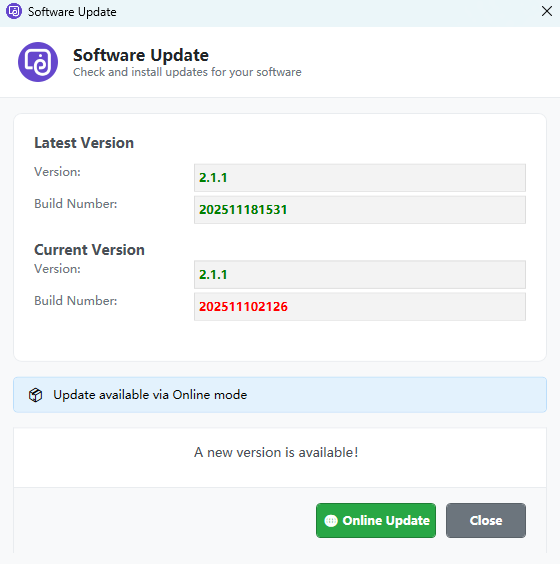
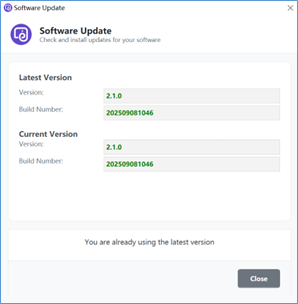
If the current version is the latest version of the software, the current version and the latest version information will be the same, and relevant prompts will appear.
ETA firmware Upgrade
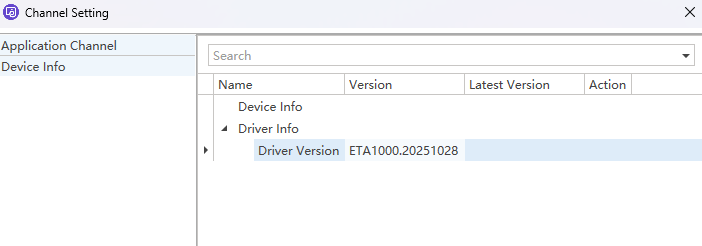
You can confirm the firmware version of the current hardware through the device info option in Channel Setting, and if it detects a situation higher than the current firmware version, the Update option will appear, and you can enter the firmware upgrade after clicking to confirm.