Configure simulation projects
Physical channel allocation issues
Symptom: Error frames are displayed in the Timeline Trace window.
Cause: The logical channel does not match the hardware physical channel:
(1) The configuration is wrong;
(2) The configuration is correct and not connected.
Solution: When configuring the simulation project, the logical channels of ETStudio, such as CAN1 or LIN1, should be properly connected to the physical channels corresponding on the hardware ETA1000. Users can access the channel configuration interface in Device→Channel Assignment, as shown in Figure.
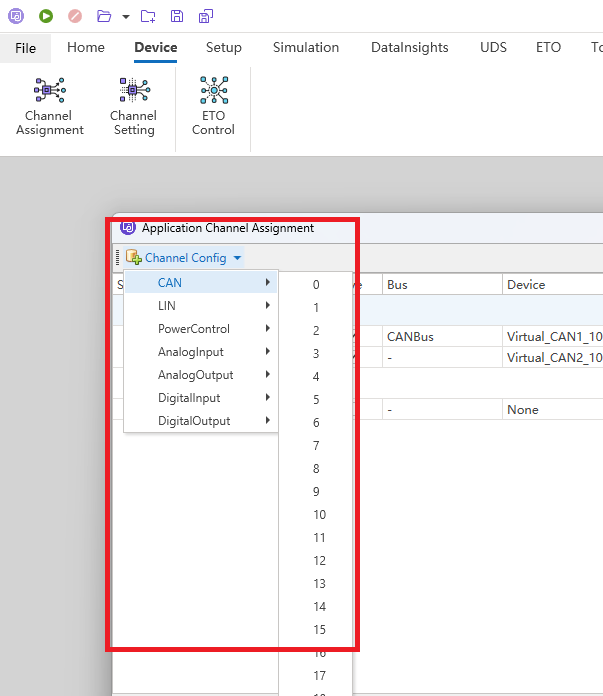
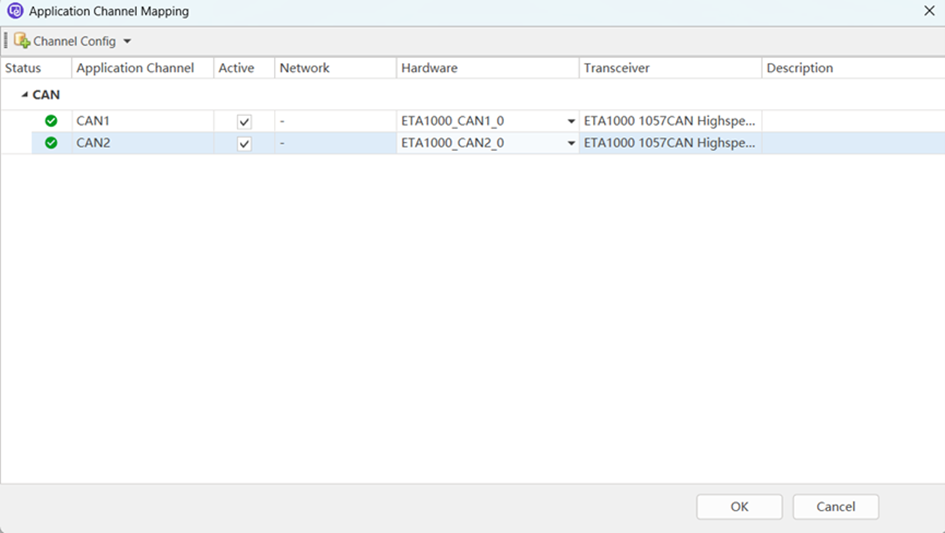
Once the logical channels of the CAN or LIN are selected, they can be associated with the ETA1000 channels, as shown in Figure. In Figure, you can see that ETStudio's logical channel CAN1 is associated with ETA1000's Channel 1, and ETStudio's logical channel CAN2 is associated with ETA1000's Channel 2.
The baud rate problem
Phenomenon: Error frames appear on the bus. The contents displayed in the Timeline Trace window are shown in Figure.
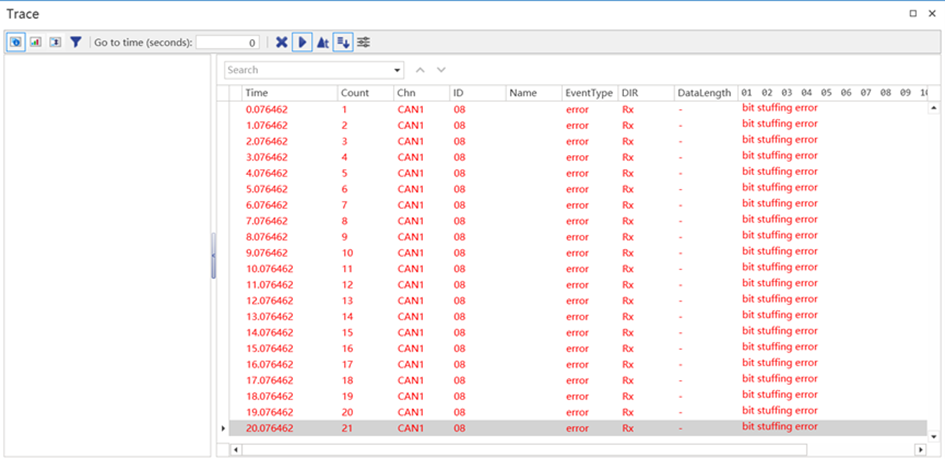
Cause: The baud rate setting does not match the actual baud rate of the CAN bus.
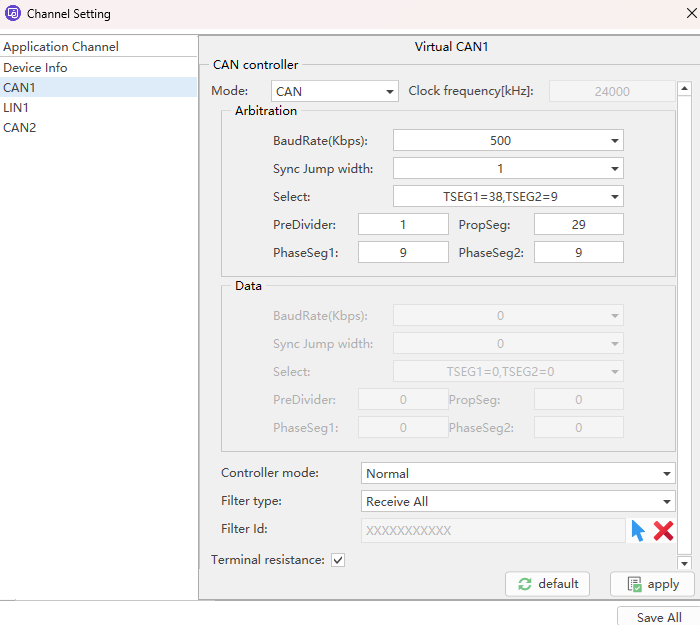
Solution: Users can set the baud rate in Device→Channel Setting, as shown in Figure.
Virtual channel setup issues
Phenomenon: If you select a virtual channel and run a simulation project, the packets are displayed normally in the Timeline Trace window.
Cause: The virtual channel was incorrectly mapped to the logical channel, as shown in Figure.
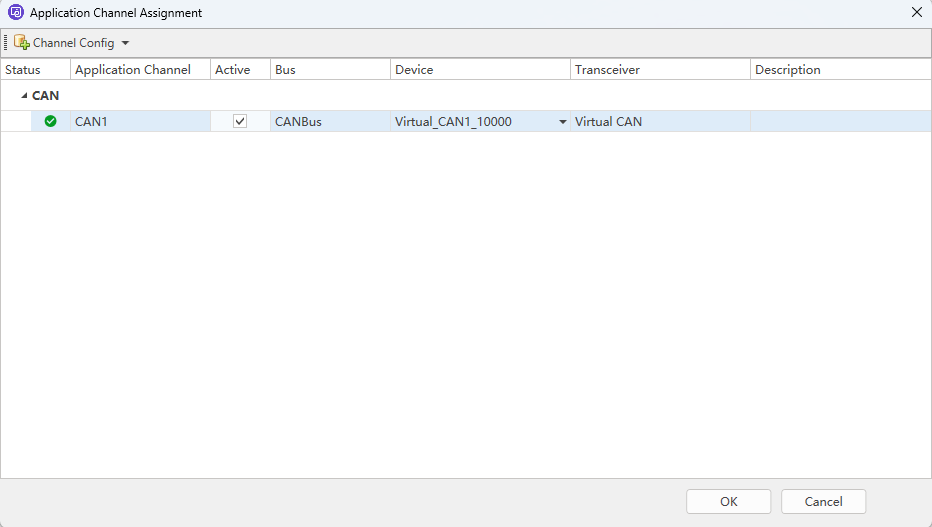
Solution: Set up the correct channel. ETStudio provides a virtual CAN channel for users to use as a test. ETStudio adds three virtual CAN channels for users by default. A virtual CAN channel, as the name suggests, is a virtual physical channel that has similar functions to a physical channel, but does not send CAN packets to the real bus through hardware. When users create and edit a simulation project, they can map the logic channel to the virtual channel to simulate the real CAN bus, which helps users debug and verify the correctness of the simulation project. Users can set up their own virtual channels according to their needs.
Hardware connection issues
Symptom: Packets cannot be displayed properly in the Timeline Trace window, or incorrect frames are displayed.
Cause:
(1) The pins of the hardware interface card CANH and CANL are reversed with the CANH and CANL of the system under test;
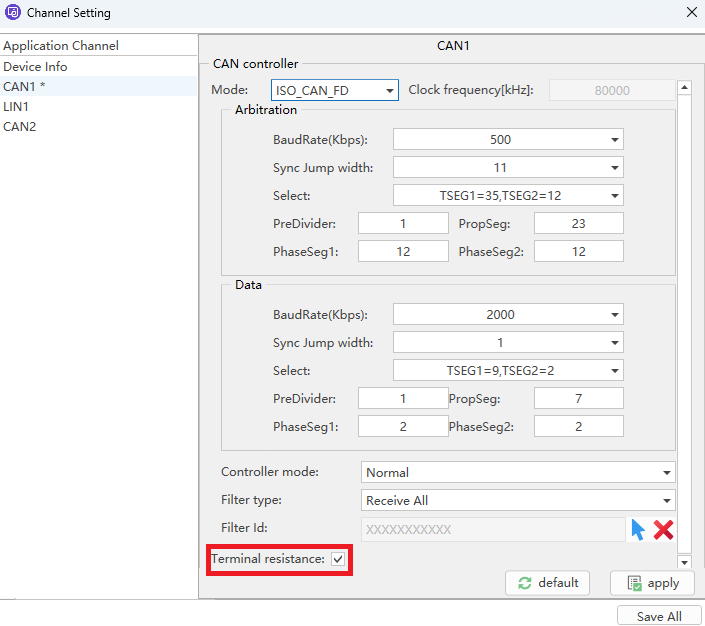
(2) For high-speed CAN, the connection terminal resistor is not checked, as shown in Figure;
(3) For single-wire low-speed CAN, there is no connection to the ground wire;
(4) The connection is unstable or the ECU under test cannot communicate.
Solution: Confirm whether the connected hardware interface is wrong, whether the connection is reliable, whether the connection terminal resistor is checked according to the requirements, etc., and make corresponding adjustments to the problem.
Simulation project personalization
Normally, in order to facilitate measurement and analysis, users can make some necessary convenient settings in ETStudio. Developers of simulation projects can also add some convenient and quick personalized settings to the project according to the needs of the project when releasing the simulation project.
Save different engineering profiles
When using ETStudio for testing, the test scenarios are often different, and the purpose is also different, such as real vehicle testing and bench testing, sometimes just to see some traces. If all tests use the same project folder, it is a waste of time to set up a series of settings for different scenarios. Users can configure different project folders for each test scenario, which reduces the time spent on configuring the environment. For example, if a simulation project folder is Project_A, the project folder for bench testing can be saved as Project_A_BenchTest, and the project folder for real vehicle testing can be saved as Project_A_InCarTest.
Simulation project folder naming conventions
In order to manage their simulation projects more clearly, it is recommended that users develop good habits when developing their own simulation projects and store the files in the project in categories. For the naming habits of simulation project folders, please refer to Table.
| Folder | Description | Remarks |
|---|---|---|
| Project Folder | Stores ETStudio (.ets) files | e.g., ETStudio.ets file |
| DBC | Stores bus database files in the project | e.g., Project.dbc file |
| Scripts | Stores script files | e.g., RxMsg.cpp file |
| Dashboards | Stores dashboard files | e.g., RxSignal.xml file |
| Logging | Stores log files | e.g., Trace.blf file |
| XCP | Stores XCP configuration files | e.g., XcpConfig.json file |
| Global Variables | Stores imported system variables | e.g., SystemVariable.txt file |
| UDS | Stores UDS diagnostic configuration files | e.g., Project.pdx file |